
Download StageTimer Display – free desktop timer, stopwatch and clock
Overview
StageTimer Display is a lightweight, free utility designed for macOS users who need a quick visual reference for the time of day, a countdown timer, or a simple stopwatch without opening the full‑featured Clock app. Unlike a stand‑alone timer, StageTimer Display acts as a companion skin that taps into the native timer service already built into macOS, presenting the information in a compact, always‑on‑top window that can be positioned anywhere on the desktop. The app’s tiny footprint (under 5 MB) makes it ideal for older Macs or systems where screen real‑estate is at a premium.
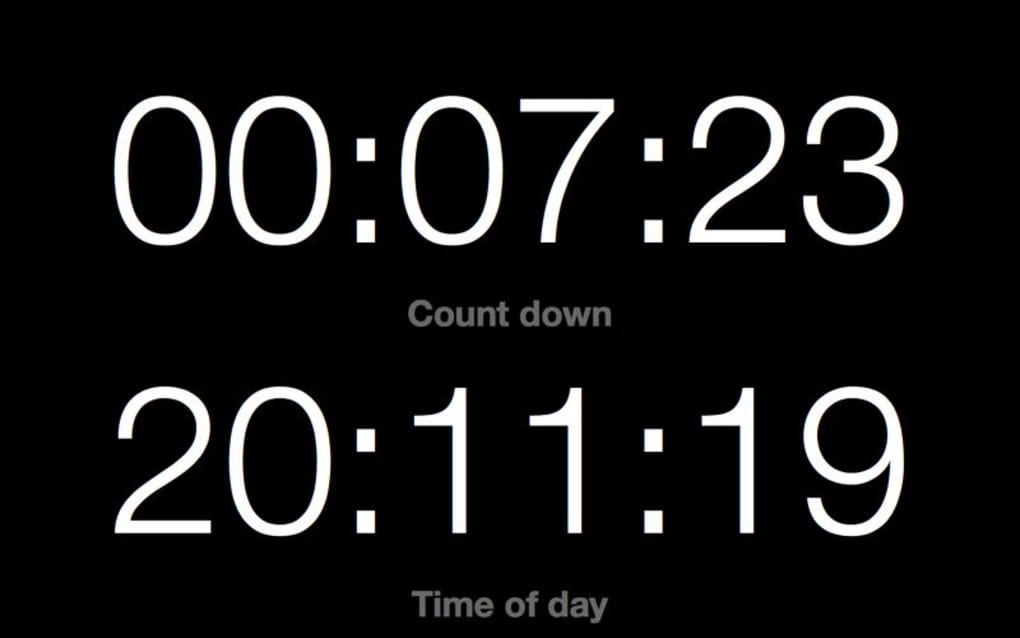
Once installed, the interface shows the current time in a clean digital font, while a single click toggles a countdown mode where you can set minutes and seconds. An additional button launches a basic stopwatch, giving you start, pause, and reset controls. Because it merely mirrors the underlying system timer, the app inherits macOS’s reliable time‑keeping accuracy and integrates seamlessly with the operating system’s power‑saving features.
Users who have tried similar “clock widgets” often complain about confusing installation steps or hidden dependencies; StageTimer Display mitigates those issues by providing a straightforward installer and clear on‑screen instructions. However, the very nature of being a companion app means that it will not function on Windows, Linux, Android, or iOS—its usefulness is strictly confined to the macOS environment. In short, if you want a minimalistic, always‑visible clock and timer that doesn’t hog resources, StageTimer Display delivers exactly that, while also reminding users to understand that it is not a full‑featured timing suite.
Key Features
- Compact, always‑on‑top window that can be resized and repositioned.
- Displays current time in a clear digital format, supporting 12‑hour and 24‑hour modes.
- Integrated countdown timer with minute‑second precision and audible alert.
- Simple stopwatch with start, pause, reset, and lap functionality.
- Seamless integration with macOS’s built‑in timer service for accurate time‑keeping.
- Customizable appearance: choose light or dark themes to match your desktop.
- Minimal CPU and RAM usage – ideal for older Macs or multi‑tasking environments.
- Free to download and use, with no hidden in‑app purchases or subscriptions.
- Automatic updates via Sparkle framework, ensuring you always have the latest bug fixes.
- Supports macOS 10.10 (Yosemite) and later, including Ventura and Sonoma.
Each of these features is geared toward users who need quick, glanceable time information without the clutter of full‑scale clock applications. The app’s design philosophy focuses on simplicity: there are no calendars, world‑time converters, or alarm‑setting dialogs that could distract from the primary purpose. Instead, StageTimer Display gives you a single, clean window that can be toggled on and off with a keyboard shortcut (⌥⌘T by default).
The countdown timer can be set by typing directly into the display area, and the stopwatch automatically records lap times in a small dropdown list, making it easy to review intervals without leaving the app. The light/dark theme switch respects macOS’s system‑wide appearance settings, so the window automatically adapts when you change from Light to Dark mode. Because it’s a companion to the native timer, there is no risk of time drift; the app simply reflects the system clock, which is regularly synchronized via Apple’s time servers.
Overall, these features combine to form a utility that is both unobtrusive and surprisingly capable for a free desktop tool.
Installation & Usage Instructions
Getting StageTimer Display up and running is intentionally straightforward. Follow these steps for a smooth installation:
- Visit the official download page (or a trusted source such as the Mac App Store if listed).
- Click the “Download” button; the file will be a small
.dmgpackage namedStageTimerDisplay.dmg. - Open the
.dmgand drag theStageTimer Display.appicon into your Applications folder. - Launch the app from the Applications folder or via Spotlight (⌘ Space, then type “StageTimer”). The first run will prompt macOS to verify the developer; click “Open” to continue.
- Upon launch, a tiny window appears in the top‑right corner of your screen, showing the current time.
Using the app is equally simple. Click the small timer icon in the window to switch to countdown mode. A numeric field appears—type the desired minutes and seconds, then press Enter to start.
An audible chime will sound when the timer reaches zero, and the display will revert to the regular clock view. To access the stopwatch, click the stopwatch icon; the button toggles between “Start” and “Pause”. A lap button appears when the stopwatch is running, allowing you to capture intermediate times without stopping the count.
All settings (theme, 12/24‑hour format, shortcut key) are accessible via the menu bar icon: click the app’s icon in the macOS menu bar, then select “Preferences”.
Because StageTimer Display is a companion app, it requires the native macOS timer to be present, which is true for all modern macOS versions. The app does not interfere with other timing utilities; you can run multiple timers simultaneously without conflict. If you ever need to remove the app, simply drag it from the Applications folder to the Trash; any residual preferences are stored in ~/Library/Preferences/com.pocketbits.stagetimerdisplay.plist and can be deleted manually if desired.
Compatibility
StageTimer Display is built exclusively for macOS. The minimum supported version is macOS 10.10 (Yosemite), and the software has been tested on later releases, including macOS 11 (Big Sur), macOS 12 (Monterey), macOS 13 (Ventura), and macOS 14 (Sonoma). There is no Windows, Linux, Android, or iOS version available, as the app relies on the specific APIs of Apple’s timer service. Users running older hardware that cannot upgrade beyond macOS 10.10 will still be able to install and use the app, though they may miss out on newer visual tweaks introduced in later OS releases.
Pros and Cons
Pros
- Extremely low system resource usage – negligible impact on CPU and RAM.
- Free, with no hidden fees or subscription model.
- Seamless integration with macOS’s native timer ensures accurate timekeeping.
- Customizable appearance that follows system-wide Light/Dark mode.
- Simple, intuitive UI that can be learned in seconds.
- Keyboard shortcut for quick toggling, enhancing workflow efficiency.
- Automatic update mechanism keeps the app current without manual downloads.
Cons
- Functions only as a companion skin; it cannot operate without the built‑in macOS timer.
- Limited to macOS – no Windows, Linux, or mobile support.
- Lacks advanced features such as multiple alarms, world clocks, or calendar integration.
- Occasional confusion among new users who expect a standalone timer app.
- No built‑in option to customize the alert sound for the countdown timer.
Frequently Asked Questions
Is StageTimer Display a standalone timer application?
No. StageTimer Display is a companion app that provides a visual skin for the timer already built into macOS. It cannot function without the native timer service.Can I use StageTimer Display on Windows or Linux?
No. The software is designed exclusively for macOS because it relies on Apple‑specific APIs. There are alternative clock widgets for Windows and Linux, but this app will not run on those platforms.Does the app support custom alert sounds for the countdown timer?
Currently, StageTimer Display uses the default macOS alert sound. Users cannot change the sound within the app, though they can modify the system’s default alert tone if they wish.How do I move the timer window to a different part of the screen?
Click and drag the window’s title bar (the thin area at the top) to any location on your desktop. The window will stay on top of other apps unless you toggle the “Always on Top” setting off in the Preferences menu.Is there an automatic update feature?
Yes. StageTimer Display uses the Sparkle framework to check for updates at launch and can install new versions silently, ensuring you always have the latest bug fixes and compatibility improvements.Conclusion & Call to Action
StageTimer Display fills a niche for macOS users who crave a minimal, always‑visible clock and timer without the bloat of full‑featured applications. Its free price tag, tiny footprint, and seamless reliance on the system timer make it a solid choice for anyone who wants quick time checks while working, studying, or streaming content. While the lack of advanced alarm features and cross‑platform support may turn away power users, the app’s simplicity is precisely what many people need. If you’re looking for a hassle‑free way to keep track of the time on your Mac, download StageTimer Display today, customize the look to match your desktop theme, and enjoy a reliable timer that never interferes with your workflow.
Ready to try it? Click the download button below, install the .dmg, and start using your new desktop timer within minutes. Stay on schedule, keep your presentations punctual, and never miss a beat again.
StageTimer Display offers a clean, unobtrusive interface for macOS’s built‑in timer. Its free status and low resource usage are major pluses, though newcomers should be aware that it is a companion app rather than a standalone solution.







